
How to share my VPN to my other Wi-Fi devices
Connectify Hotspot turns your PC into a virtual router and allows you to share your Internet connections with all devices. So, why not share a secure Internet connection while you're at it?
Note: You can only share OpenVPN based VPN connections and Speedify using Connectify Hotspot. Wireguard, L2TP, PPTP and other VPN protocols are not supported.
Hardware requirements:
- A Wi-Fi adapter (internal, or an external USB adapter) that supports Wi-Fi Direct or Microsoft Hosted Network.
Sharing a VPN over Wi-Fi works on every edition of Connectify Hotspot, including Hotspot Lite (free). On Hotspot Lite, the hotspot name starts with "Connectify-" and the hotspot stops after a time limit; Hotspot PRO or MAX removes both.
Step 1: Start and connect your VPN. If you're not sure which VPN to choose, we recommend going with a mobile VPN such as Speedify, that can also combine multiple connections at the same time.

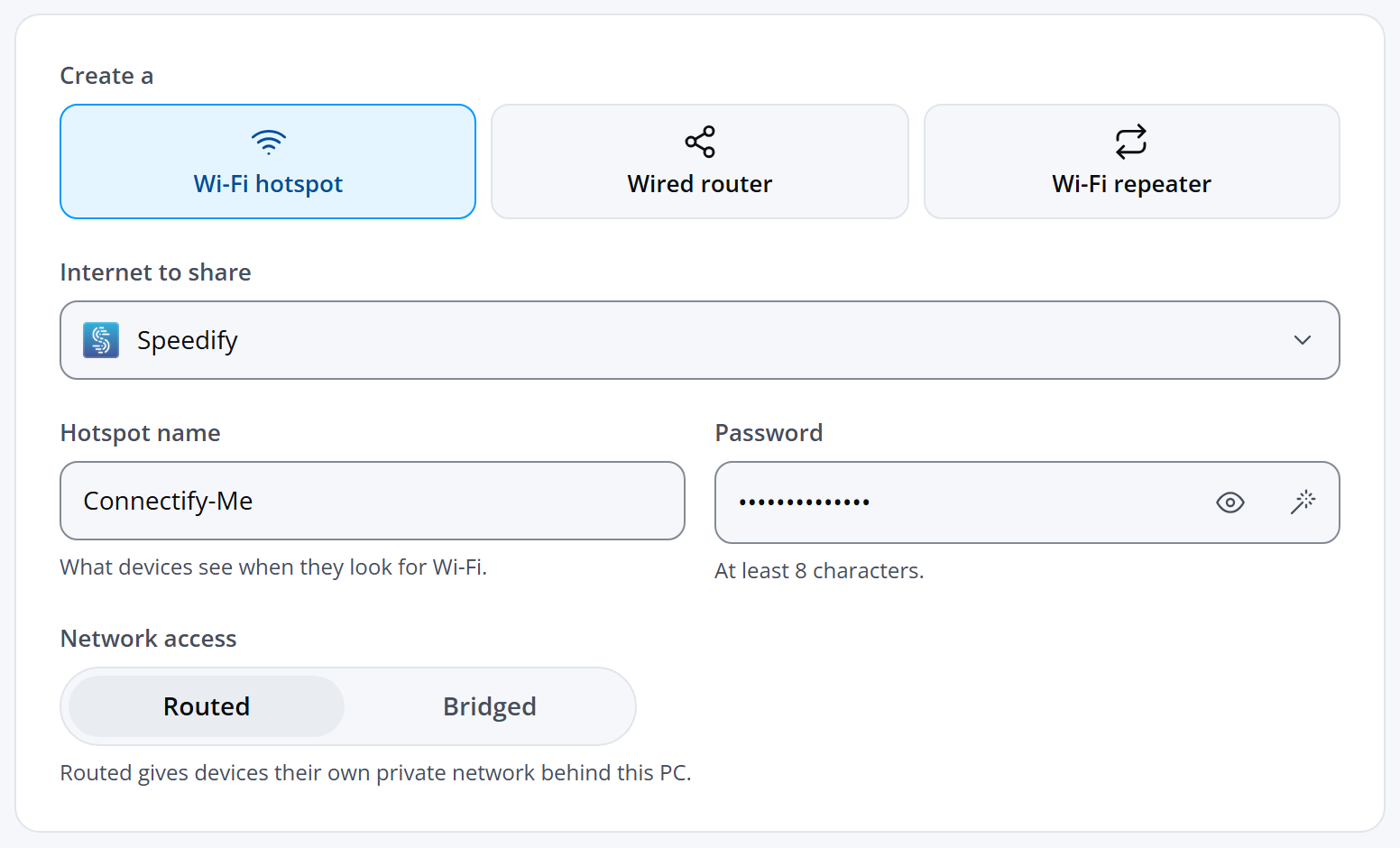
Step 2: Open Connectify Hotspot. On the Hotspot screen, under Create a, choose Wi-Fi hotspot.
Step 3: Choose your VPN under Internet to share. Icons next to each adapter tell you what kind of Internet connection you’re selecting. If you use Speedify, choose Speedify or Automatic: while Speedify is connected, Connectify Hotspot won't start with any other connection, because name lookups only work inside the Speedify tunnel while it's connected.
Step 4: Give your hotspot a Hotspot name (SSID) and Password. The hotspot name is the network name that other devices will see and connect to using your unique password. Your Connectify Hotspot is a real, working hotspot that you use just like any other wireless network.
Step 5: Leave Network access on Routed (a VPN connection can't be bridged).
Optional: turn on Block ads in the Protection card, as this feature will save you a lot of data. Learn more about the ad blocker in Connectify Hotspot.
Step 6: Click Start hotspot to begin sharing your Internet connection with your other devices.