
What happens to my hotspot when my PC sleeps?
Your hotspot runs on your PC, so it can only work while your PC is awake. When Windows puts the PC to sleep, the hotspot goes off and your devices lose their connection until the PC wakes up. This article explains what Connectify Hotspot does to keep your PC awake, what it can't prevent, and what happens when the PC wakes.
Allow sleep while running
To find this setting, click Settings, then Power.
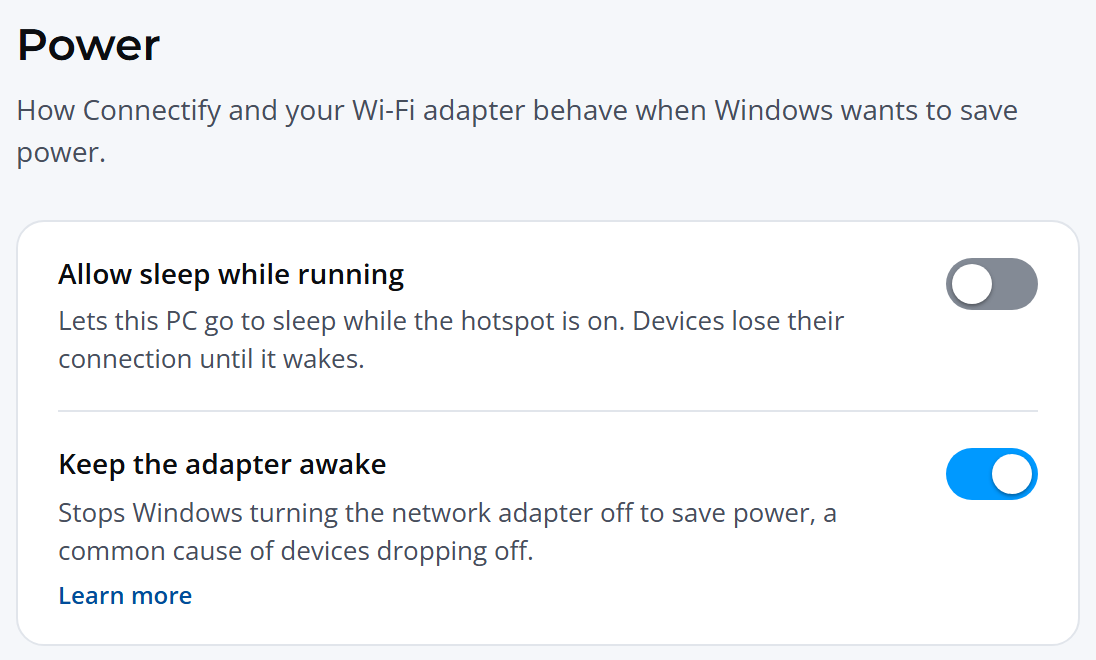
Allow sleep while running: "Lets this PC go to sleep while the hotspot is on. Devices lose their connection until it wakes."
- Off (the default): while your hotspot is sharing, Connectify Hotspot asks Windows not to put the PC to sleep when it has been idle for a while. Your screen can still turn off as usual.
- On: Connectify Hotspot doesn't ask, and Windows sleeps on its normal schedule, even with devices connected.
The request only applies while the hotspot is sharing. When the hotspot is stopped or paused, Windows sleeps as usual. The setting works on every edition, including Hotspot Lite.
Keeping this setting off doesn't stop every kind of sleep. Your PC still goes to sleep if you choose Sleep from the Start menu, press the power button, or close the lid of a laptop that's set to sleep when closed. And on many newer laptops it isn't enough on its own, as the next section explains.
Laptops with Modern Standby
Many newer laptops and tablets use a kind of sleep called Modern Standby: when the screen turns off, the PC goes into a low-power standby instead of fully sleeping. On these PCs, Windows stops the hotspot within about 10 minutes of the screen turning off, and sometimes sooner, even if Connectify Hotspot has asked Windows to stay awake. Devices on the hotspot drop off, and new devices can't join.
To check whether your PC uses Modern Standby, open Command Prompt and run:
powercfg /aIf the list of available sleep states includes Standby (S0 Low Power Idle), your PC uses Modern Standby.
On these PCs, the way to keep your hotspot running is to stop the screen turning off while you're sharing. See the Windows settings below.
What happens when your PC wakes
Connectify Hotspot 27 starts your hotspot again by itself when the PC wakes, so you don't need to stop and start it. Devices that were connected before can then rejoin; most reconnect to a network they know without you doing anything.
After Modern Standby, Connectify Hotspot notices that Windows ended the hotspot and starts it again shortly after the PC wakes. If the hotspot can't start right away, it keeps trying every 5 minutes. If your hotspot still isn't running a few minutes after the PC wakes, click Start hotspot.
Keep your PC awake while you share
If you need your hotspot to stay on for a long time, such as overnight or while you're away from the PC:
- Keep the PC plugged in. Windows saves power more aggressively on battery.
- Leave Allow sleep while running off in Connectify Hotspot (Settings > Power).
- Check how long Windows waits before turning off the screen and putting the PC to sleep when it's plugged in, and set them to Never while you share:
- Windows 11: Settings > System > Power & battery, then Screen and sleep (called Screen, sleep, & hibernate timeouts in recent versions).
- Windows 10: Settings > System > Power & sleep.
- If you close your laptop's lid while sharing, make sure closing it doesn't put the PC to sleep: open Control Panel > Hardware and Sound > Power Options, click Choose what closing the lid does, and set When I close the lid to Do nothing for Plugged in. Then click Save changes.
Keep the adapter awake
The other setting on the same screen, Keep the adapter awake, is about your Wi-Fi adapter rather than the whole PC: "Stops Windows turning the network adapter off to save power, a common cause of devices dropping off." It is on by default, and we recommend leaving it on. See How to Disable Adapter Power Management.
After a restart
Restarting or shutting down your PC is different from sleep. Whether your hotspot starts again when Windows starts is set in Connectify Hotspot's startup options. See How do I stop Connectify from running when Windows starts?
If your devices drop off while the PC is awake, see My devices frequently disconnect from my hotspot.