
How to Tether an Android to your PC via Wi-Fi
This is the most efficient way to tether your Android smartphone to a PC: it's fast and it's wireless. This article shows you the steps to do this, and how to share that connection with your other devices using Connectify Hotspot.
Hardware requirements: internal Wi-Fi card, external Wi-Fi USB adapter (optional).
Step 1: Download and install Connectify Hotspot on your PC. Your phone's hotspot shows up on your PC as an ordinary Wi-Fi connection, so every edition of Connectify Hotspot can share it as a Wi-Fi hotspot, including Hotspot Lite (free). Sharing it to a router or other Ethernet devices (Wired router) needs Hotspot PRO or MAX.
Step 2: Make sure you have a Wi-Fi card installed on your PC and it’s on. Open Windows Settings > Network & internet > Wi-Fi and check that Wi-Fi is turned on. If your computer doesn’t have an internal Wi-Fi card, get an external Wi-Fi USB adapter and plug it into a USB port of your PC. Windows will install the appropriate drivers or you may be required to install them - just see the documentation you get with the device. You may need to restart your PC before being able to use the external Wi-Fi USB adapter.

Step 3: Create a Wi-Fi hotspot on your Android smartphone (Wi-Fi tethering). To do this, you can usually swipe down on the notification bar and tap on the hotspot icon. You should also enable the cellular data connection if it’s off. Or, you can go to the Settings screen and toggle them on from the Networks (mobile data) / Tethering (Wi-Fi hotspot) areas.
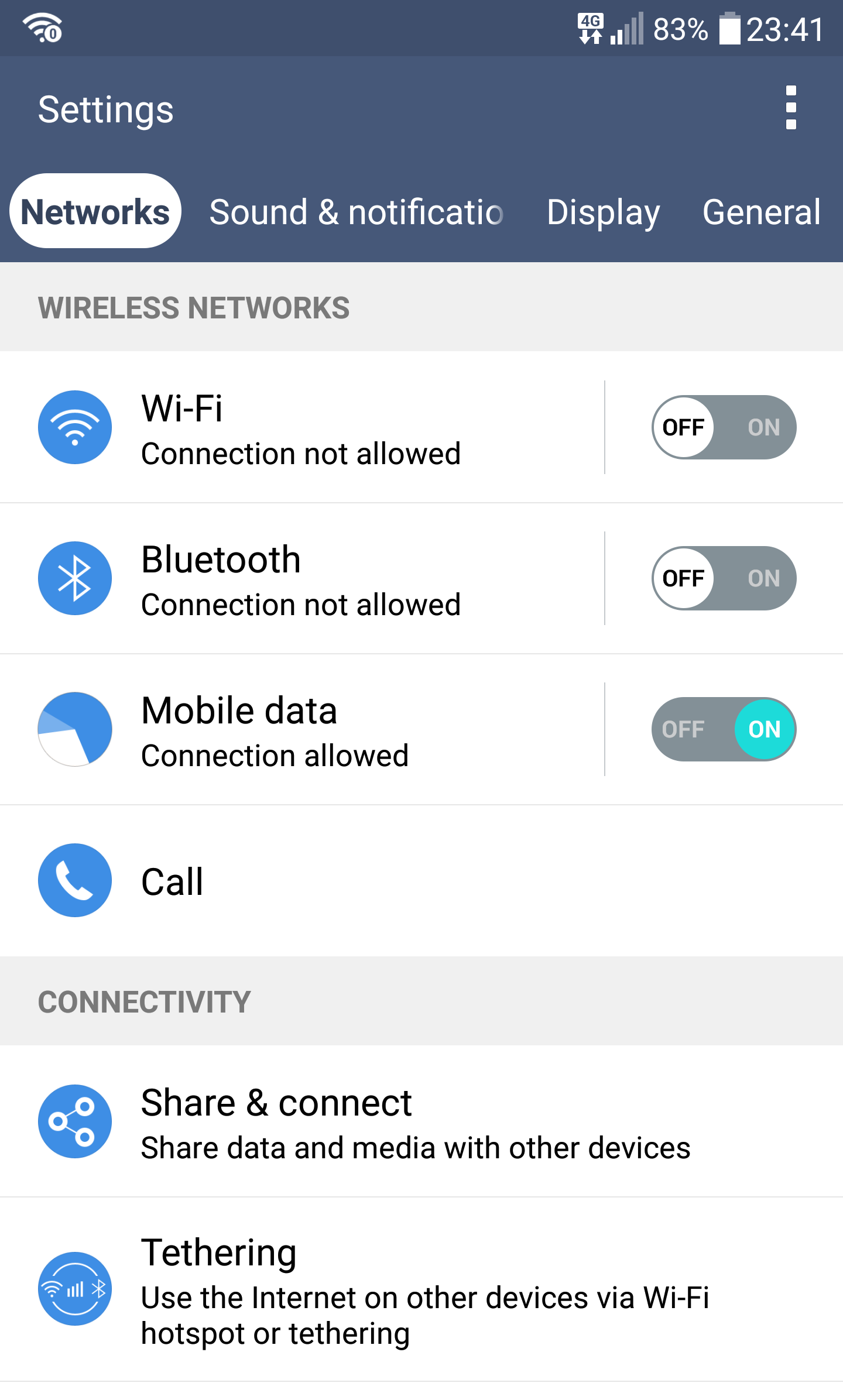

Step 4: Configure the Wi-Fi hotspot on your Android smartphone. Usually, there’s an icon in the notification area of the Android smartphone. Swipe down and tap on that. You’ll be able to set up the Wi-Fi hotspot: SSID and password.

Step 5: Connect your PC to the Wi-Fi network. Click the network icon at the right end of the taskbar. On Windows 11, click the arrow next to Wi-Fi to see the list of networks. Make sure Wi-Fi is on, select the Wi-Fi hotspot you set up on your phone, and click Connect. Enter your password (if you set one up) and you’re good to go.

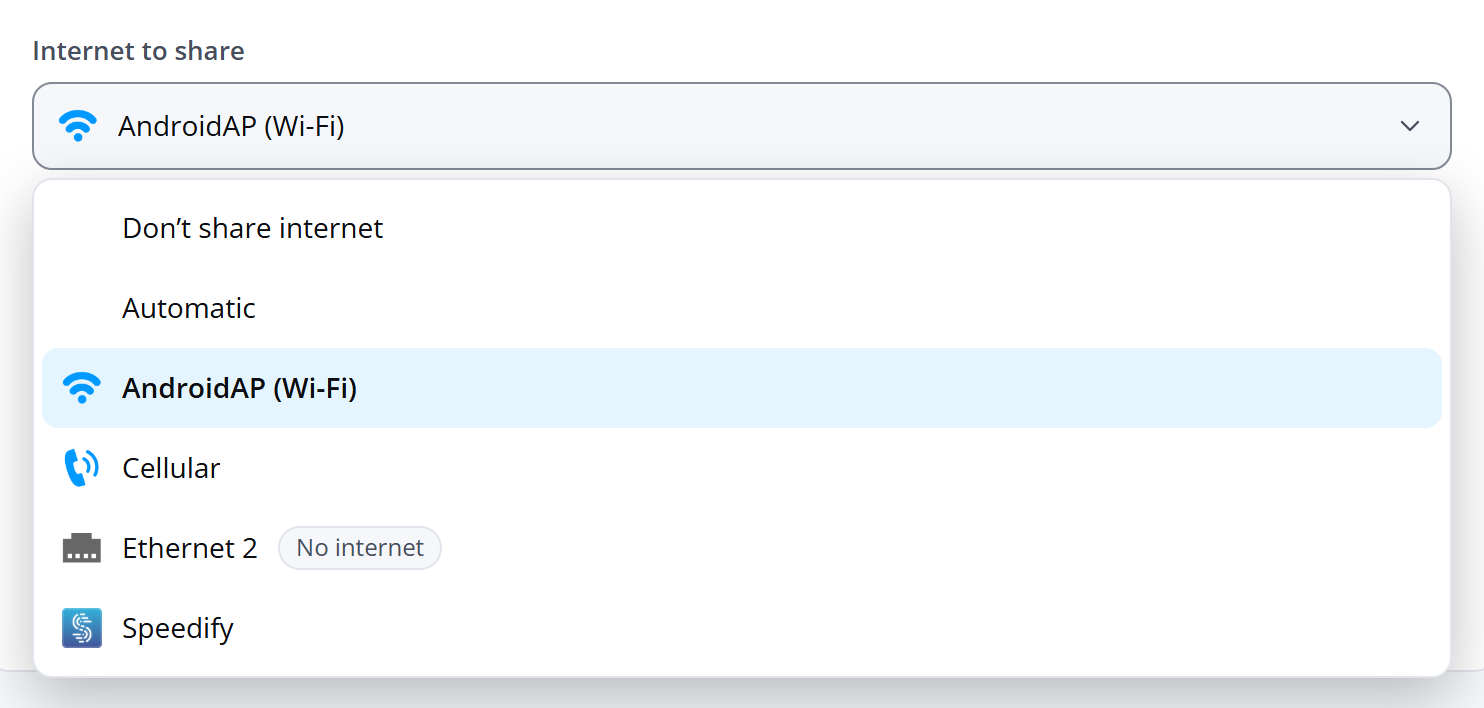
Step 6: Share the connection with Connectify Hotspot. On the Hotspot screen, choose your phone's Wi-Fi network under Internet to share, and then click Start hotspot.
For every step, see How to share my Android Internet connection to my other Wi-Fi devices, or, to share it with a router, How to share my Android Internet connection to my router.