
How to choose a DNS server in Connectify Hotspot
Yes. Connectify Hotspot 27 lets you choose the domain name server (DNS) that the devices on your hotspot use, on every edition. The DNS server is the service that turns website names into addresses. Some also block known malware sites.
How to choose the DNS server
- Click Settings, then Security and privacy.
- Under DNS server > Who looks up website names, click the one you want. The change applies right away, even while the hotspot is running.
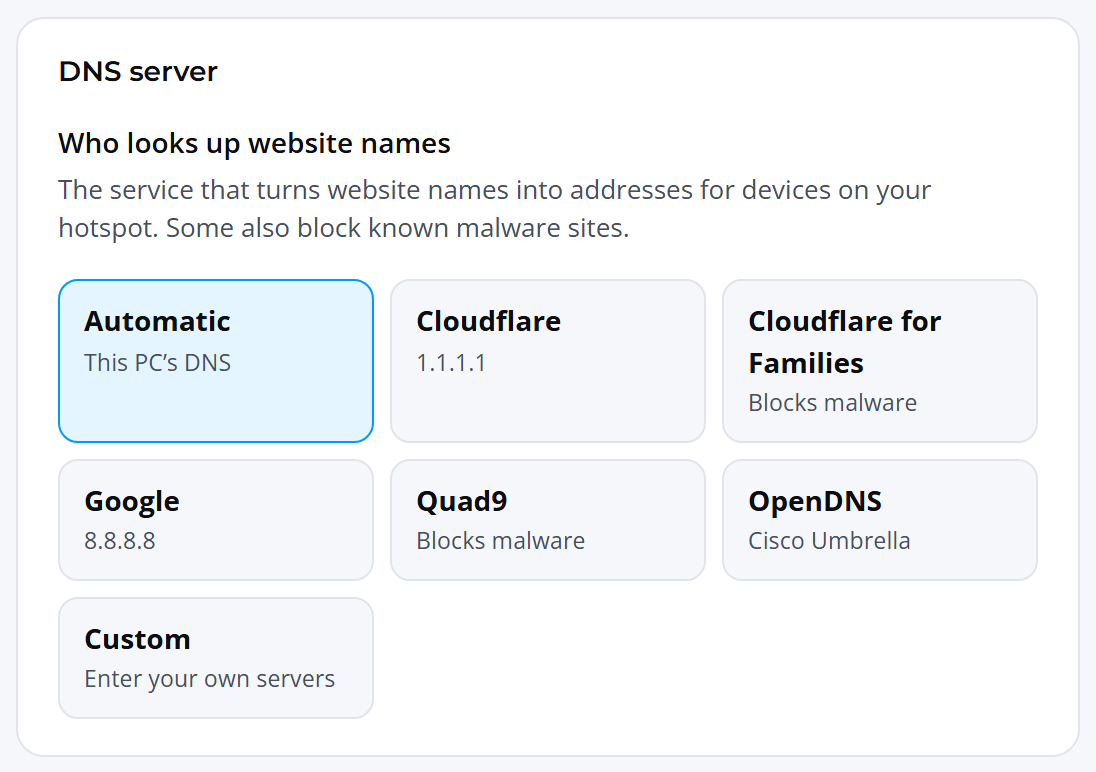
The choices are:
- Automatic (This PC's DNS): the default. Devices use the same DNS servers as the internet connection you're sharing (the one under Internet to share; if that is set to Automatic, your PC's DNS servers). If you change the DNS of that connection on your computer, your hotspot uses that DNS too.
- Cloudflare (1.1.1.1 and 1.0.0.1).
- Cloudflare for Families (1.1.1.2 and 1.0.0.2), which blocks malware.
- Google (8.8.8.8 and 8.8.4.4).
- Quad9 (9.9.9.9 and 149.112.112.112), which blocks malware.
- OpenDNS (Cisco Umbrella; 208.67.222.222 and 208.67.220.220).
- Custom: enter your own servers' IPv4 addresses, separated by commas, and click Use these. Use this for a SmartDNS service or the DNS server on your own network.
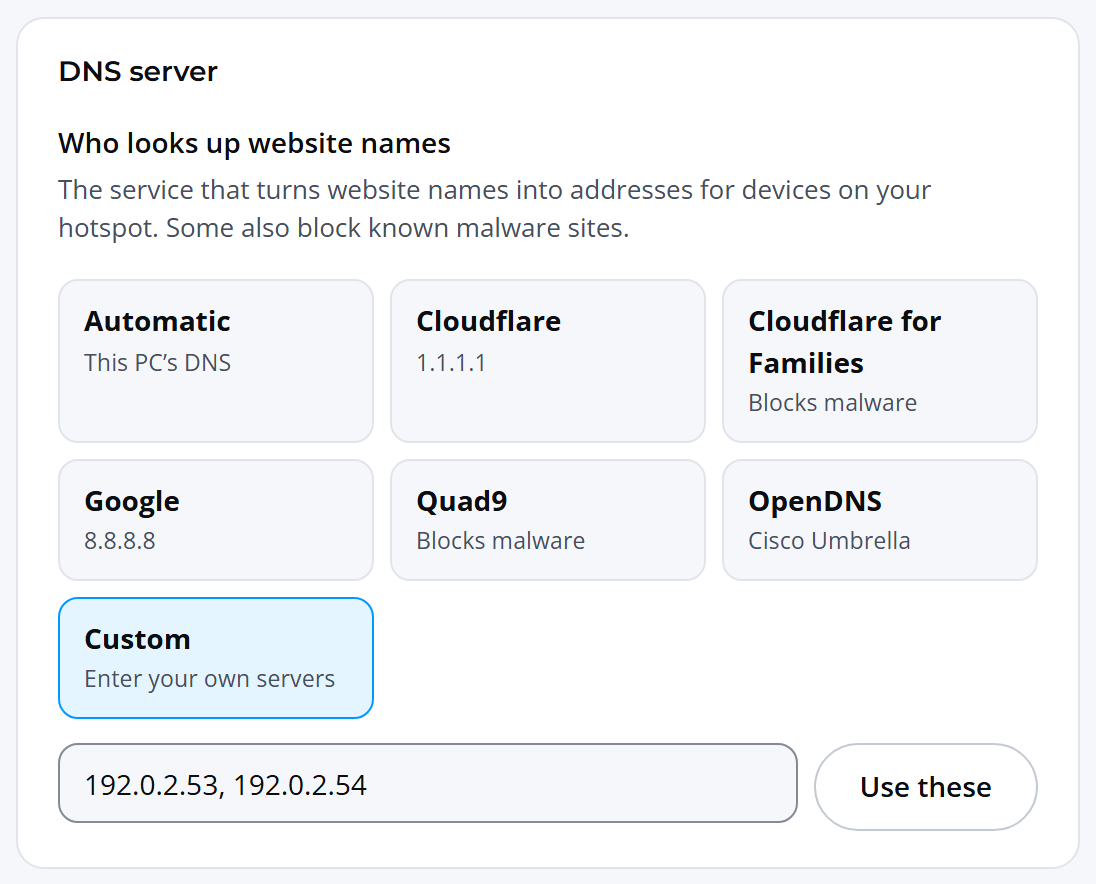
Connectify Hotspot checks the servers you choose before handing them to your devices, when the hotspot starts and whenever you change the setting. The check looks up a public website name, so a server that can't look up public names (such as one on your own network that only knows local names) counts as not answering. Any server that doesn't answer is left out, and if none of them answer, your hotspot uses your internet connection's own DNS servers instead, so your devices aren't left without a working DNS.
If Block ads is on, your hotspot answers for blocked names itself, before asking the DNS server you chose. Devices that have their own DNS server set (for example in their Wi-Fi settings, Android's Private DNS, or a browser's secure DNS) keep using it instead of your choice.
Checking which DNS server is in use
While the hotspot is running, the Connection details card on the Hotspot screen shows the DNS server your devices are using, and where it came from: "Your choice", "From your internet connection" or "Found on the network". If a server you chose isn't answering, it says "Not answering:" followed by its address. The Protection card also shows the current DNS choice.

When the DNS setting doesn't apply
The DNS setting is not available with Bridged network access or in Wi-Fi repeater mode. There, your devices are on the original network and use its DNS, and the Protection card says "Not used in this mode". To change the DNS your devices use in those modes, change it on the router of the network you're sharing.
Hotspot MAX users can also choose the DNS server from the command line, with connectify_cli dns. See Using the Connectify Command Line.